Creating a risk assessment survey
Roles and permissions
The following roles can create a risk survey:
Administrators
Compliance managers
Creating a risk assessment survey
From the left menu, select Assessments.
Select the Risk surveys tab.
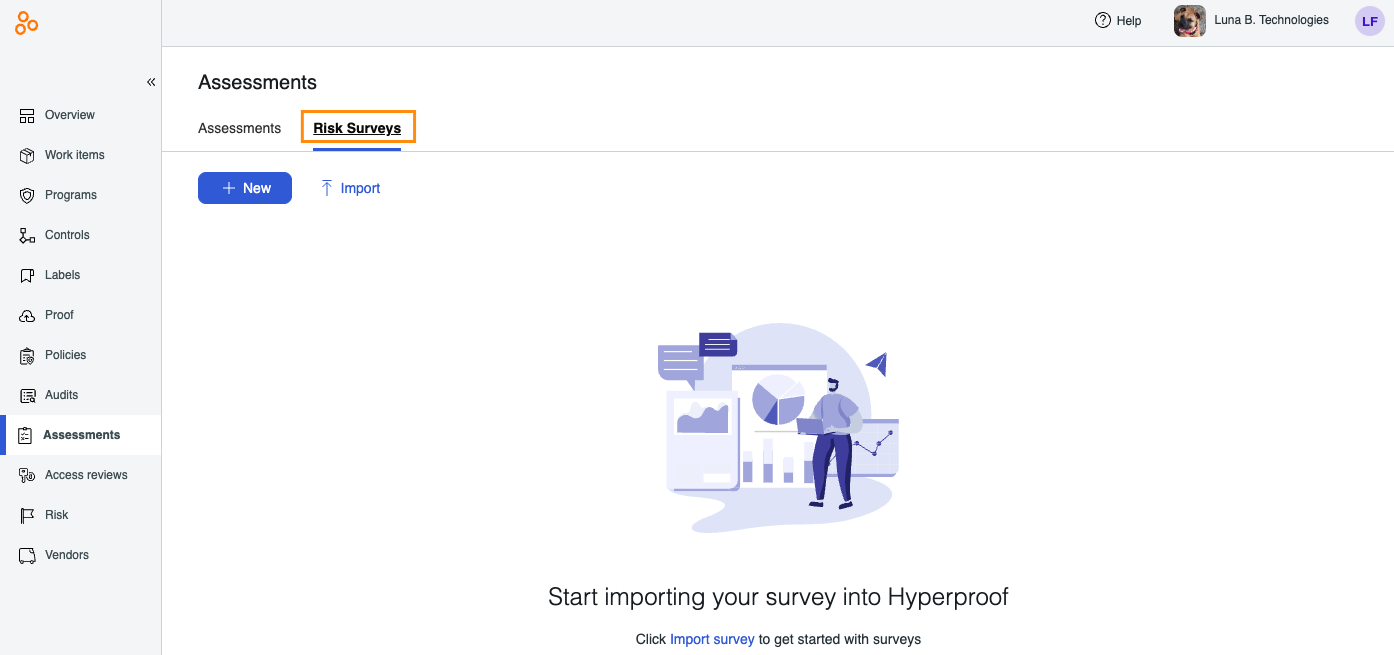
Click New.
The New survey window opens.
In the New survey name field, enter a name for the survey.
Click Create.
Click New, then select Section.
Note
Risk surveys created in Hyperproof must begin with a section.
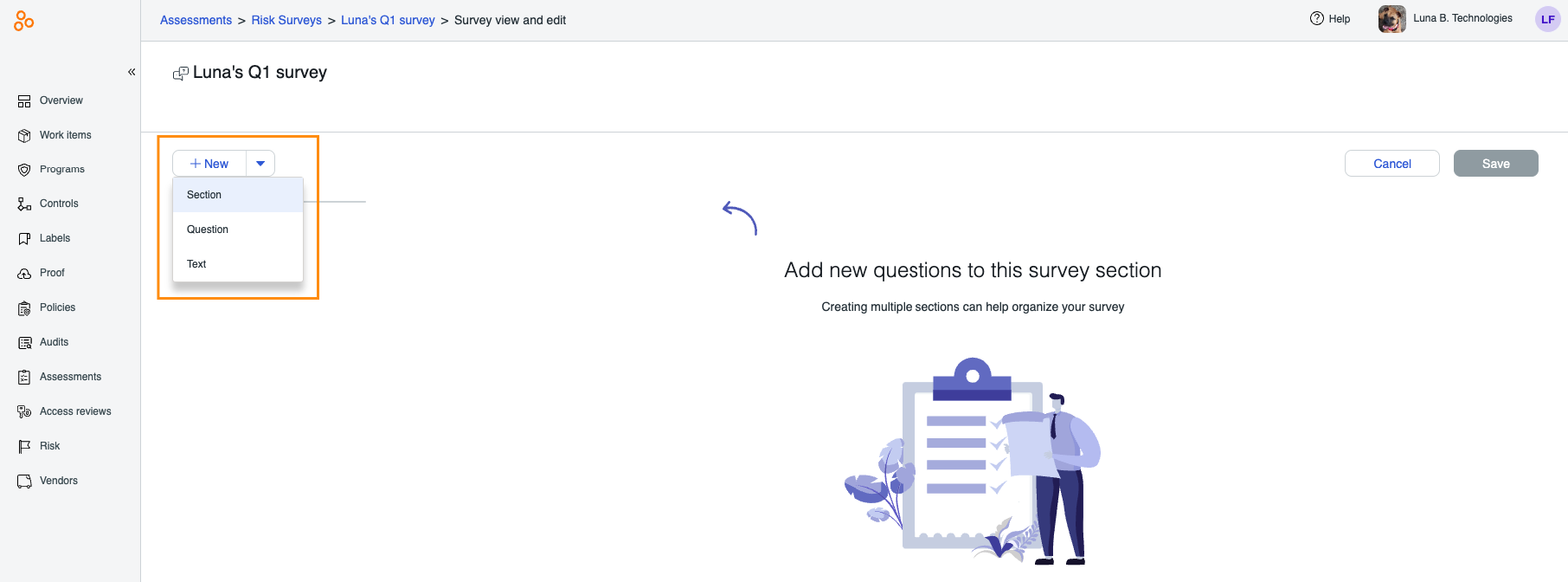
Enter a name for the section.
Once you’ve created the first section, you can then begin to add questions. For more information on creating and editing questions, see Adding questions to a risk survey below.
Adding questions to a risk survey
Risk surveys can be edited in Hyperproof or outside of Hyperproof via a CSV file. The steps below explain how to add questions to a risk survey directly in Hyperproof.
Tip
If you are already in the survey, skip to Step 6.
From the left menu, select Assessments.
Select the Risk surveys tab.
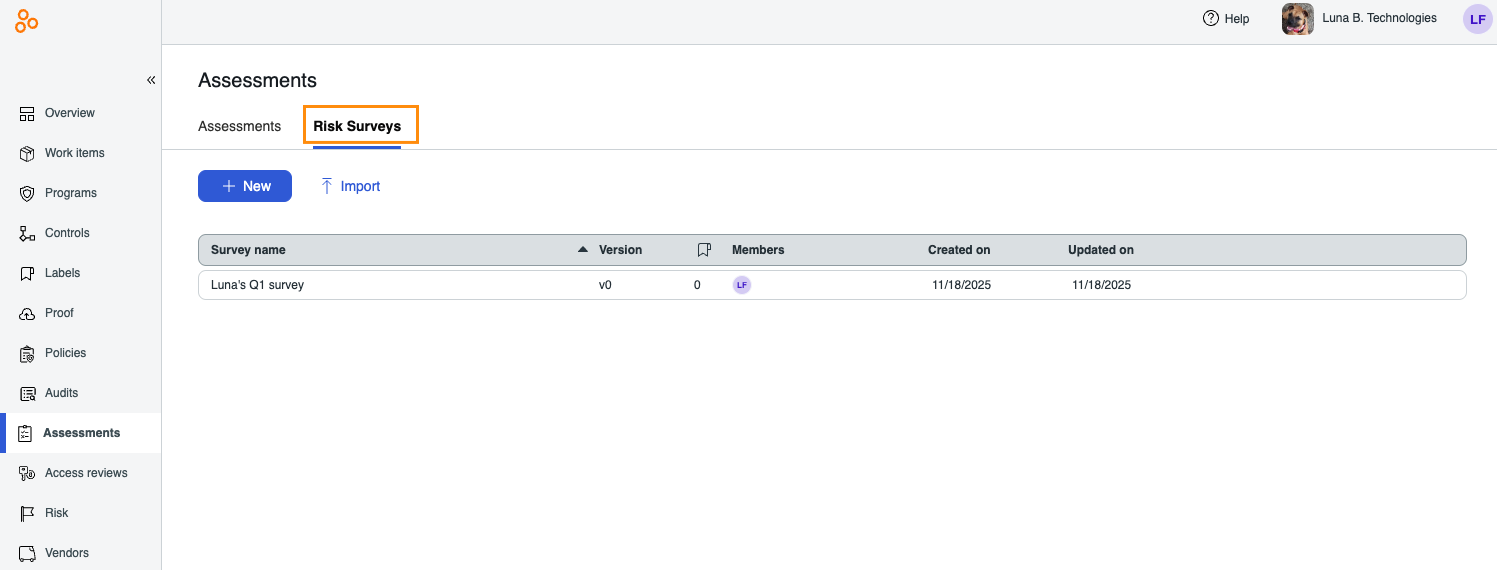
Select the survey you want to edit.
In the right pane, click View survey.
Click Edit.
Click New, then select Question.

The Add question window opens.
Below ID, enter a question ID.
Below Question, enter the question.
From the Type drop-down menu, select a question type:
Click Create.
The question is created and added to the survey.
Click Save.
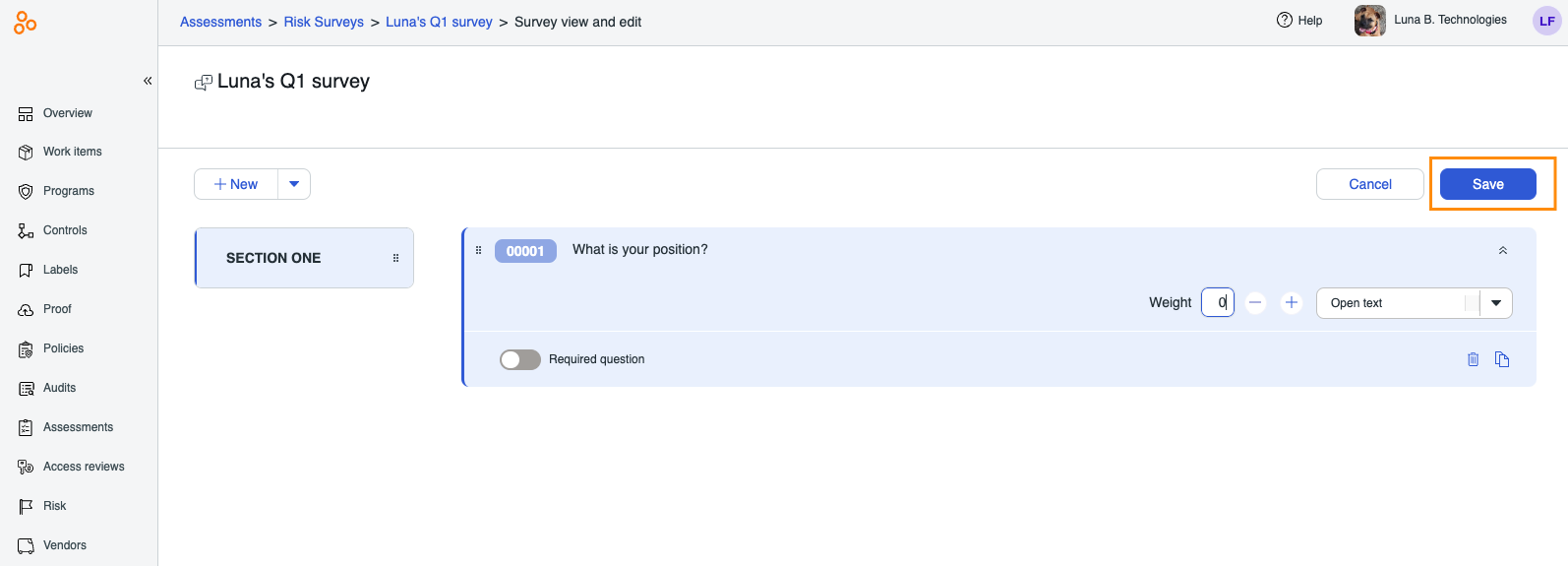
Repeat steps 6 - 11 as needed.
Using gating (conditional) questions
Hyperproof surveys support gating (conditional) questions. For more information, refer Using gating questions in a survey. Note that gating questions can only be used with single-select and single-select with explanation question types.