One-time passcodes for external users in Hyperproof Gov
Note
These instructions apply only to external users in Hyperproof Gov. For Hyperproof US and Hyperproof EU, see One-time passcodes for external users in Hyperproof US and Hyperproof EU.
One-time passcodes sent via email are a simple way to provide authenticated access to Hyperproof for external users assigned work, such as tasks, questionnaires, risk intake surveys, or risk assessment surveys.
When a task is assigned to a contact, a questionnaire is sent to a vendor, or a risk assessment survey is sent to a contact, Hyperproof emails the assignee to notify them. Each email contains a link to the specific task, questionnaire, or survey. When the assignee clicks the link in the email, Hyperproof opens a login page and emails the assignee a second message containing a one-time passcode.
For risk intake surveys, the process is slightly different. When a survey respondent receives a risk intake survey URL via email or from an intranet site, they access the URL and are immediately prompted to enter their email address. If the user doesn't have a Hyperproof login, Hyperproof opens a verification page where the respondent can request a one-time passcode.
Logging in using a one-time passcode
Note
If you are an Admin user testing this process, be sure to log out of Hyperproof before attempting to log in using the one-time passcode process.
If you are a vendor or a contact and are already logged in to Hyperproof, you don't have to log in again. Hyperproof takes you to the task, questionnaire, or risk assessment survey referenced in the email.
A Hyperproof user has assigned you a task or sent you a vendor questionnaire or survey. You'll receive an email from Hyperproof notifying you. If you are responding to a risk intake survey, you will receive a URL from your company via email or on your intranet. You will not receive an email from Hyperproof.
Open the email notifying you that you have work to do.
For a task assignment, click the View in Hyperproof button.
For a vendor questionnaire, click the Launch questionnaire button.
For a survey, click the Launch survey button or the URL provided by your organization.
The Hyperproof login window displays.
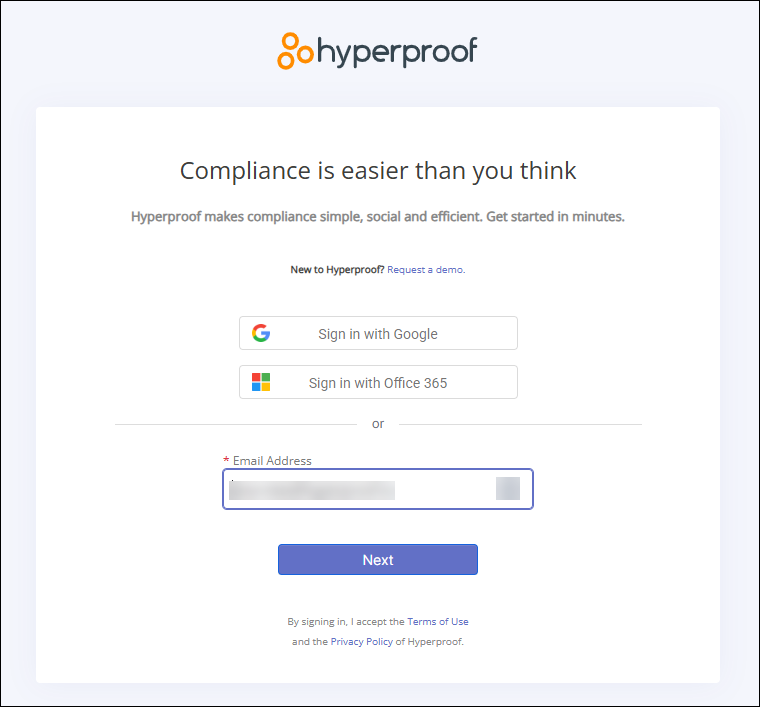
Verify that the email address is correct and click Next.
The Verify your identity window displays.
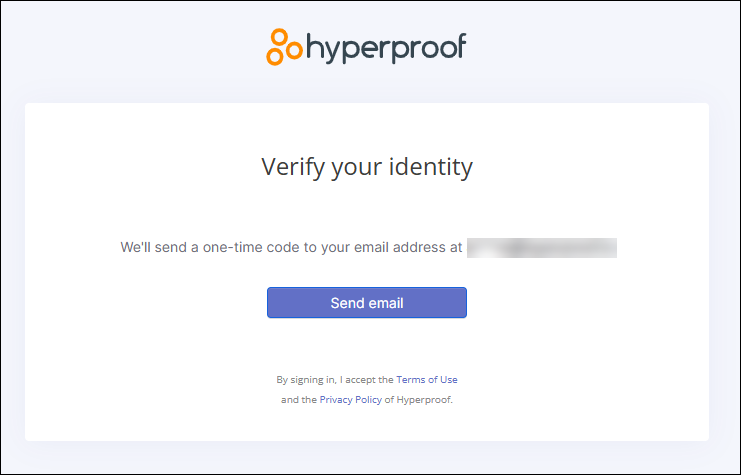
Click the Send email button to generate your one-time passcode and receive it via email.
Locate the one-time passcode email and make note of the code. The code is valid for 5 minutes; after that, you will need to request a new one.
If you don't see the email, check your Spam or Junk Email folder. You can also click Send again in the verification window.
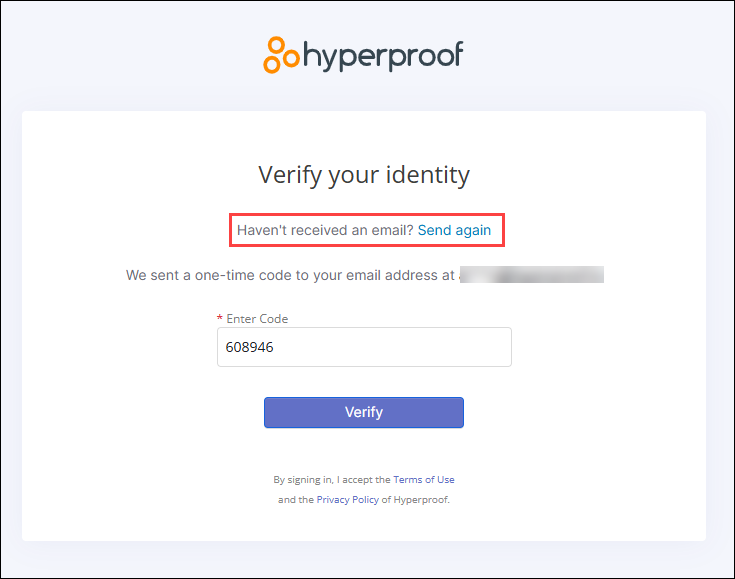
Enter the code in the verification window and click Verify.
The Hyperproof portal opens and displays your task, questionnaire, or survey. For additional information, see Working as a contact, Questionnaire respondent view, Risk assessment survey respondent view, or Completing a risk intake survey.
Note
The portal session expires after 12 hours of inactivity.