Creating a risk intake survey
Roles and permissions
The following roles can create a risk intake survey:
Anyone with manager or contributor permissions for the risk intake register
Risk intake surveys are used by organizations to report possible risks and present them for evaluation. Create a risk intake survey and distribute the URL to your team to collect risk information.
Hyperproof only supports one risk intake survey per organization.
When you create your risk intake survey, it is preconfigured with a few default questions that allow Hyperproof to store the proposed risk with the required fields. The user information and risk description fields can't be edited or removed.
You can configure additional sections and questions.
Creating a risk intake survey
From the left menu, select Risk.
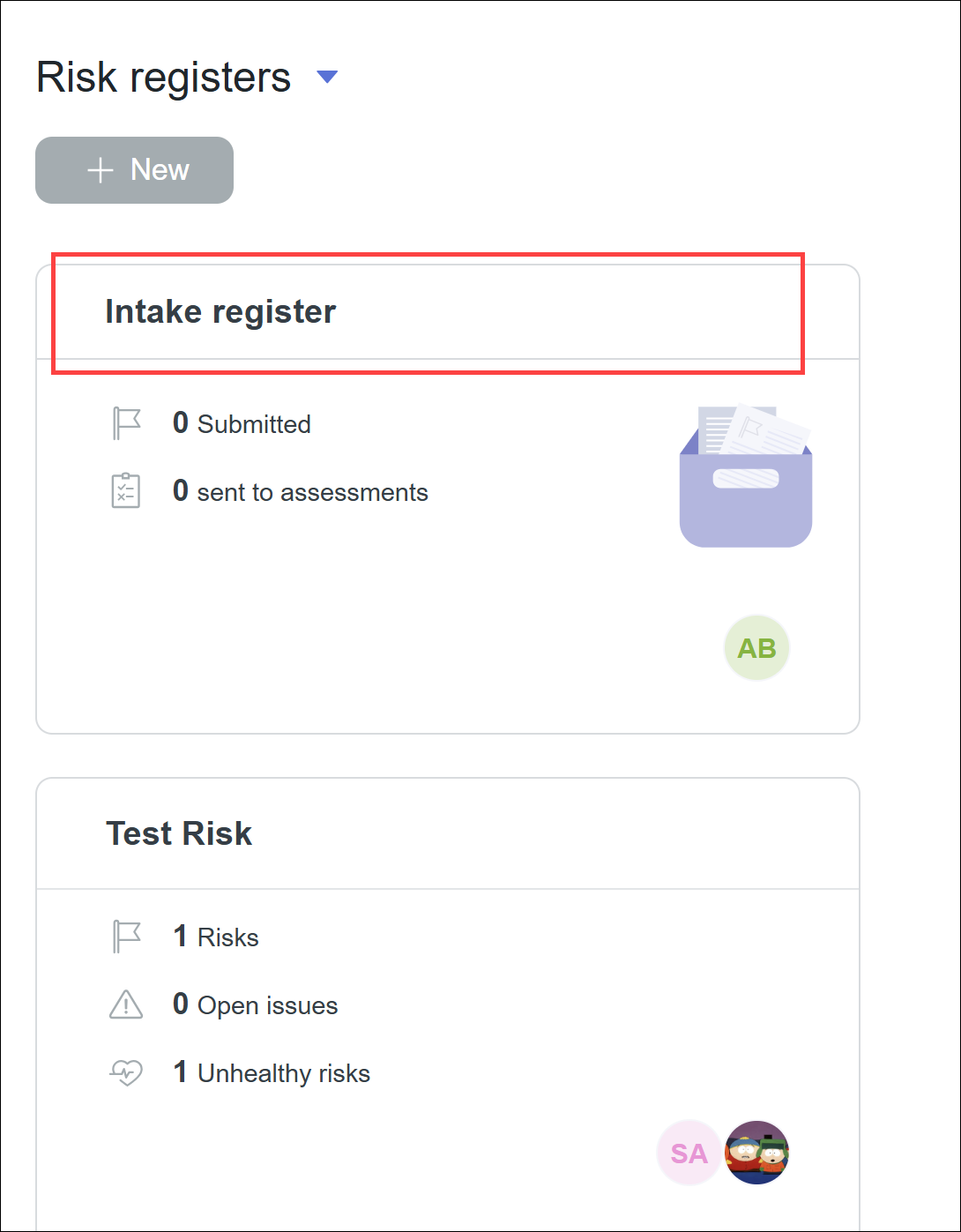
Click the Intake register card.
Select the Details tab.
In the Intake survey box, click Create survey.
The Risk Intake Survey window opens.
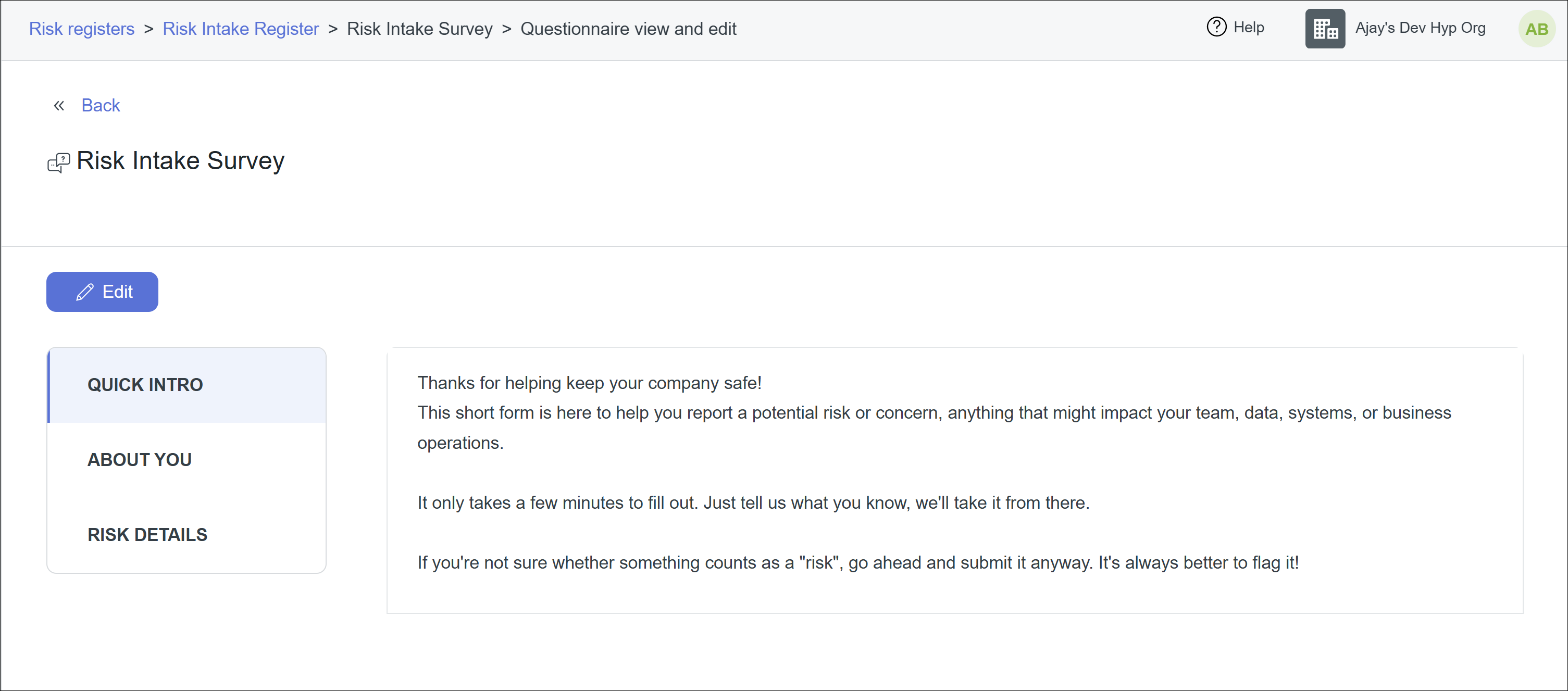
If no changes are necessary, click Back.
If changes are necessary, see Adding questions to a risk intake survey and Updating a risk intake survey.
Adding questions to a risk intake survey
The steps below explain how to add questions to a risk intake survey.
Tip
If you are already in the survey, skip to Step 5.
From the left menu, select Risks.
Click the Intake register card.
Select the Details tab.
In the right pane, click Update survey.
The Risk intake survey window displays.
Click Edit.
Click New, then select Question.
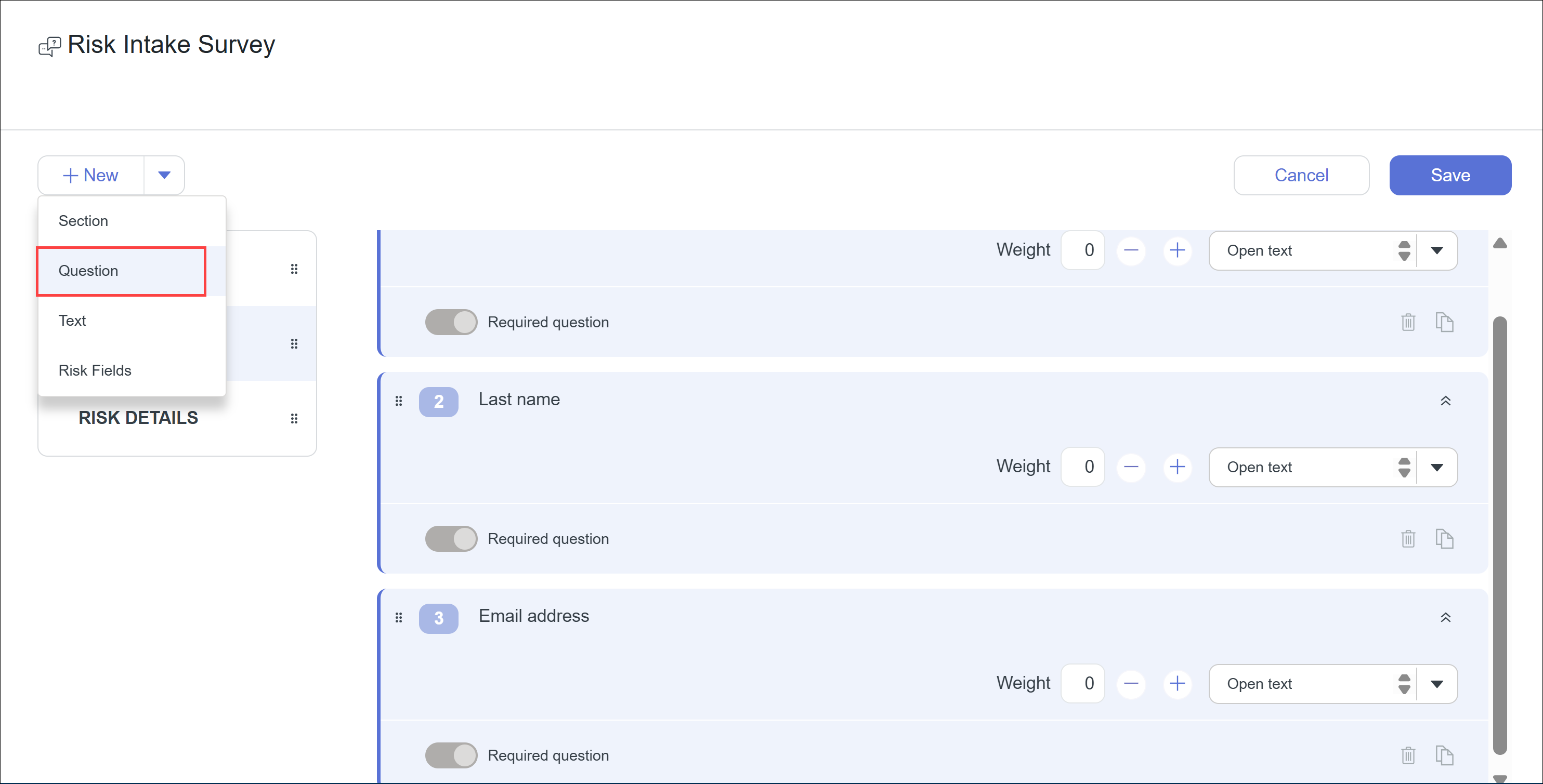
The Add question window opens.
Below ID, enter a question ID.
Below Question, enter the question.
From the Type drop-down menu, select a question type:
Single-select - A drop-down list of values where only one value can be selected.
Multi-select - A drop-down list of values where multiple values can be selected.
Single-select with explanation - Same as single-select, but with space for optional free text.
Multi-select with explanation - Same as multi-select, but with space for optional free text.
Open text - Free-form questions that allow the respondent to answer in an open-text format.
Click Create.
The question is created and added to the survey.
Click Save.
Repeat steps 6 - 11 as needed.
Adding risk fields to a risk intake survey
The preconfigured risk intake survey includes the following risk fields used to map data directly to risk fields when creating a proposed risk:
Name
Likelihood Rationale
Impact Rationale
If you remove any of these fields, you can add them back into the survey as follows:
From the left menu, select Risks.
Click the Intake register card.
Select the Details tab.
In the right pane, click Update survey.
The Risk intake survey window displays.
Click Edit.
Click New, then select Risk fields.
The Add risk field window opens.
Below ID, enter a question ID.
Click the Risk field dropdown and select a risk field. Risk fields that are already in use don't display in the dropdown.
Click Create.
The field is created and added to the survey.
Click Save.
Using gating (conditional) questions
Hyperproof surveys support gating (conditional) questions. For more information, refer Using gating questions in a survey. Note that gating questions can only be used with single-select and single-select with explanation question types.