Sending a risk assessment survey
Roles and permissions
The following roles can send a survey:
Anyone who is a manager or contributor on the survey
Anyone who is a manager or contributor on the evaluation
In Hyperproof, surveys are delivered to respondents through evaluations. First, add a survey to an evaluation. Then, send the evaluation to the risk’s owner, its external contacts, or both—prompting them to complete the survey.
Prerequisite: An existing risk survey. See Creating a risk assessment survey for more information.
From the left menu, select Assessments.
Select your risk assessment.
Select the Evaluations tab.
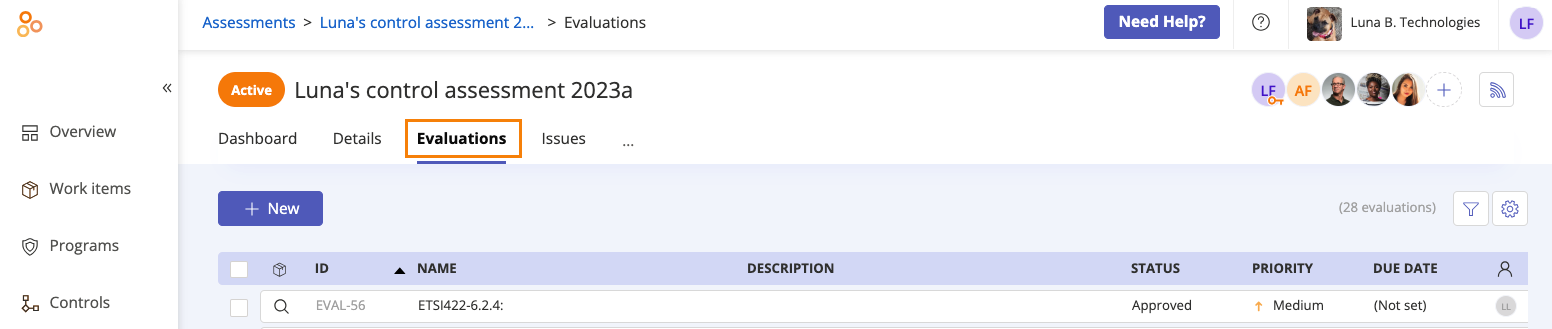
Select the evaluation you want to link the survey to.
In the right pane, expand the Research section.
Click Add, then select Survey.
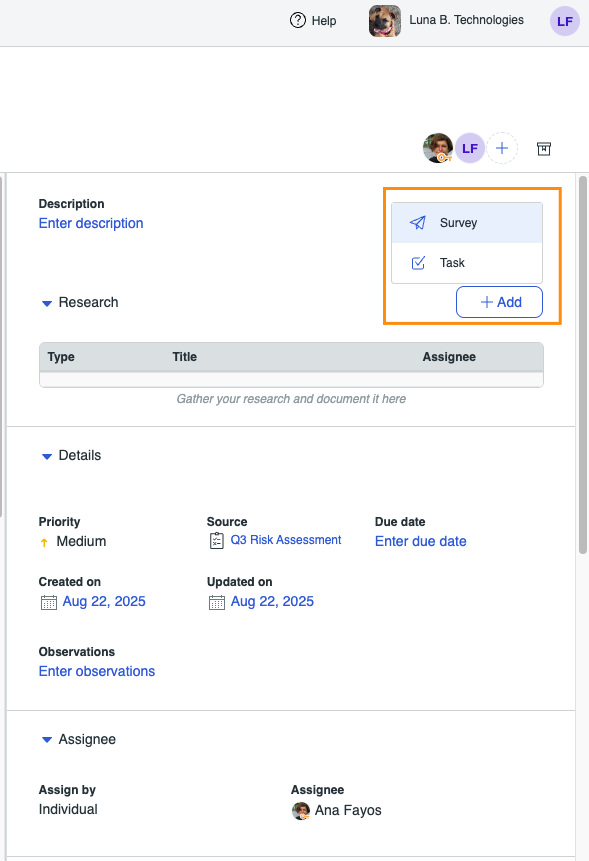
The Send survey window opens.
From the survey drop-down menu, select the survey you want to send.
From the Respondent drop-down menu, select the respondent to whom the survey should be sent. By default, both the risk owner and risk contact(s) are listed in the menu. To send the survey to all respondents, select the Select all respondents checkbox.
Tip
The users shown in the menu are linked to the risk associated with the evaluation. You can update these respondents at any time by clicking Add on Risk page.
Optionally, enter a message for the respondent or respondents in the Note field.
Click Send.
The survey is sent.
A note about sent surveys
By design, the Attachment icon (paperclip) is present on all questions, even those that are not 'proof upload' questions. Additionally, there are no restrictions on file types that can be uploaded as proof. See Viewing proof for supported file types.
All file uploads are scanned and Hyperproof's Operations team is notified of any infected files. Text input is sanitized for malicious HTML/Script.