Turning on freshness on a scope assignment control
Roles and permissions
The following roles can turn on freshness on a scope assignment control:
Anyone who is a manager on the parent control
Anyone who is a manager on the scope assignment control
Things to keep in mind when turning on freshness on a scope assignment control:
Freshness must be enabled on the parent control before setting freshness on a scope assignment control.
If freshness is not enabled on the parent control, you cannot set freshness on the scope assignment control.
If freshness is enabled on the parent control, you can edit the freshness settings on the scope assignment control.
A scope assignment control or a hierarchical scope can have its own freshness settings as long as the parent control has freshness enabled.
Note that Hyperproof "rolls up" the freshness dates from the scope assignment controls and hierarchical scopes, and uses the earliest one. For example, if the freshness expiration date is set to August 12, 2025, on the parent control, but it's set to August 1, 2025, on a scope assignment control, the parent control's expiration date will automatically update to August 1, 2025, to match the earlier date.
When bulk editing freshness on scope assignment controls, the parent control is not visible when the Expand scopes checkbox is selected. Remember that freshness must be enabled on the parent control before bulk editing scope assignment controls.
Turning on freshness on the parent control
Freshness must be enabled on the parent control before setting freshness on a scope assignment control.
From the left menu, select Controls.
Select the parent control.
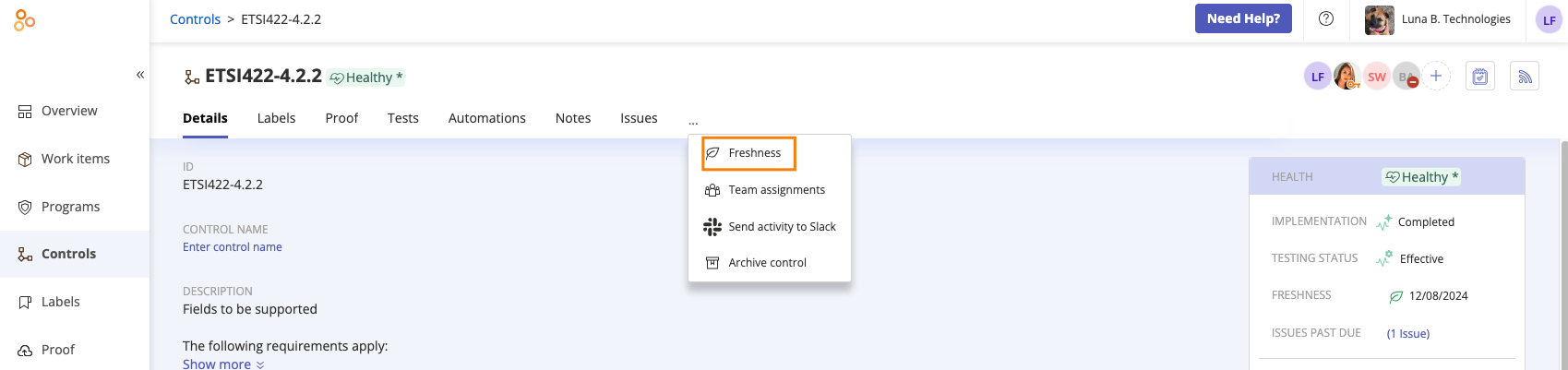
Select the ... (More options) tab, then click Freshness settings.
The Freshness window opens.
Toggle on the Enable Freshness setting.
In Current state, select the freshness status you want the object or objects to have when you save these settings.
If you selected Fresh as the Current state, in the Fresh as of field, select the date that the object or objects were first considered fresh.
Under Freshness Expires select one of the following options:
On a recurring schedule - Freshness expires based on a fixed schedule, such as monthly. This setting is independent of when the object was last marked fresh. See Understanding recurring schedules for more information.
After being marked fresh - Freshness expires a set number of days after the object is marked fresh. For example, if you mark an object as fresh on the 10th of the month and the number of days is set to 10, then freshness expires on the 20th of the month.
If you selected On a recurring schedule, enter the following information:
Note
If you choose a day that would be invalid, such as the 31st of every month, Hyperproof defaults to the last valid day of the month for months that don't have 31 days. For example, February's schedule would run on February 28th.
Effective date - Enter the date you want the schedule to start. If the Effective date is today and the selected Recurring schedule (Day of Week, Month, or Year) also falls on today, the first expiration date is set to today.
Expires every - Enter the unit of measure and the number of occurrences, such as every 1 Month or every 2 weeks.
Note
When you configure the recurring schedule, the date the next action is scheduled to take place displays below the schedule. If it is not the date you want, adjust the schedule until you get the date you need.
Options include:
Day
Week - You can select which day of the week the schedule should run. If you don't select a day, Hyperproof defaults to the day of the week of the Effective date.
Month - You can select a specific day of the month, such as Day 15, the occurrence of a weekday, such as the third Monday, the last day of the month, or the last weekday of the month.
Year - You can select a specific day of the year by month and date, the occurrence of a weekday within a specific month, such as the third Monday of December, the last day of the month, or the last weekday of the month.
If you selected After being marked fresh, below When marked fresh, the proof expires in..., set the expiration period. Hyperproof uses the Fresh as of date, along with the expiration period, to determine the expiration date. The expiration date is displayed below the schedule.
Click Save.
Freshness is now enabled on the parent control.
Adjusting freshness on a scope assignment control or a hierarchical scope
You do not need to adjust freshness on a scope assignment control or a hierarchical scope, if it has the same freshness settings as the parent control. The freshness settings of the parent control are distributed to the scope assignment control and any hierarchical scopes.
Follow the steps below if you want your child scopes to have different freshness settings.
Prerequisite: A parent control with freshness enabled.
From the left menu, select Controls.
Select the parent control.
Select the control scopes for which you want to set freshness.
Select the Details tab, hover over the freshness status, then click the Edit icon.
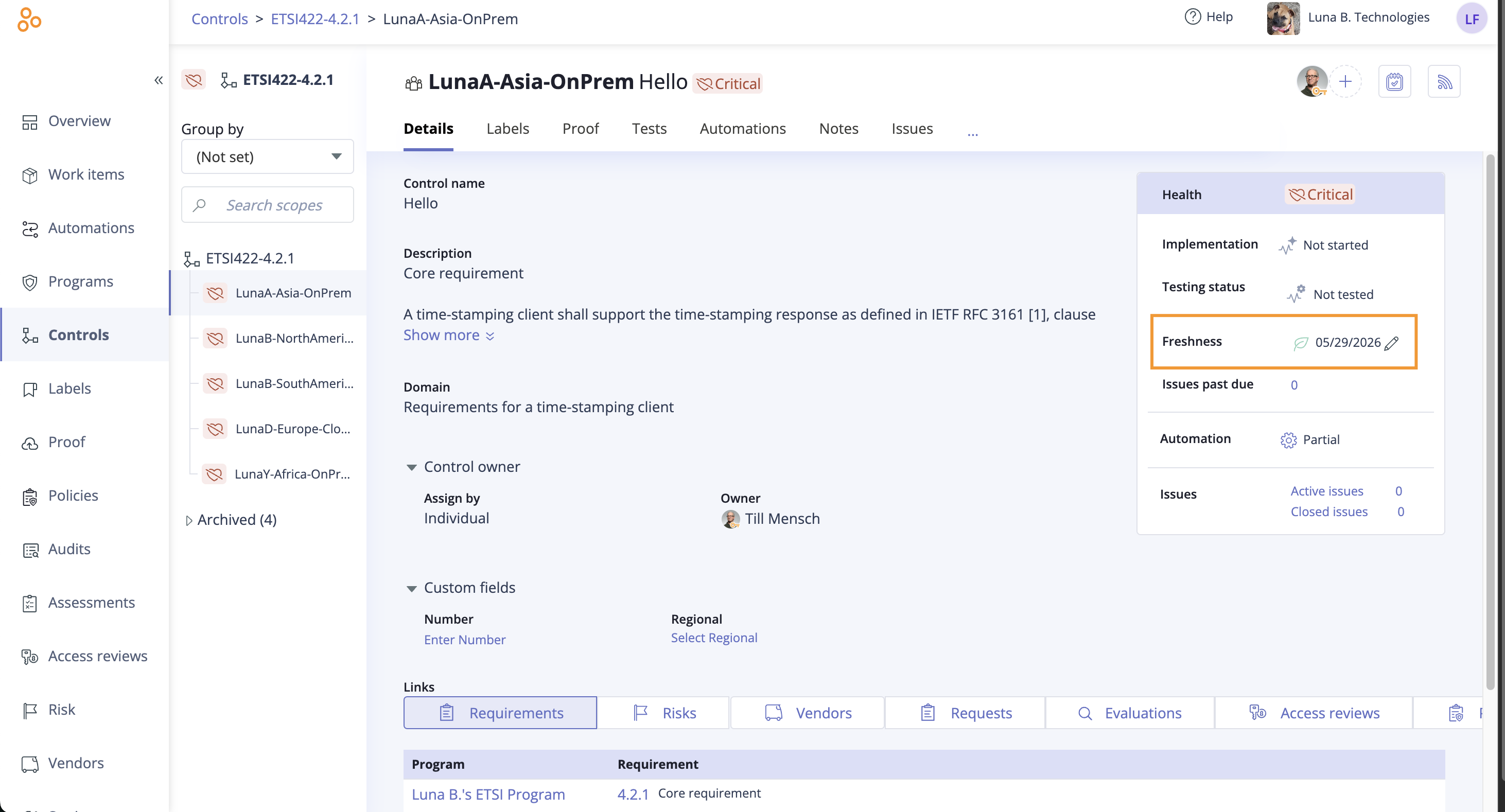
The Mark fresh window opens.
The Freshness field defaults to Fresh.
The Fresh as of field defaults to today's date. You can backdate it if necessary, but you can't choose a future date.
Hyperproof displays the next expiration date on the window.
Click Save.
The scope assignment control now has its own freshness settings.
Marking multiple control scopes fresh at once
Prerequisite: A parent control with freshness enabled.
From the left menu, select Controls.
Select the Grid view icon.

Select the Expand scopes checkbox.
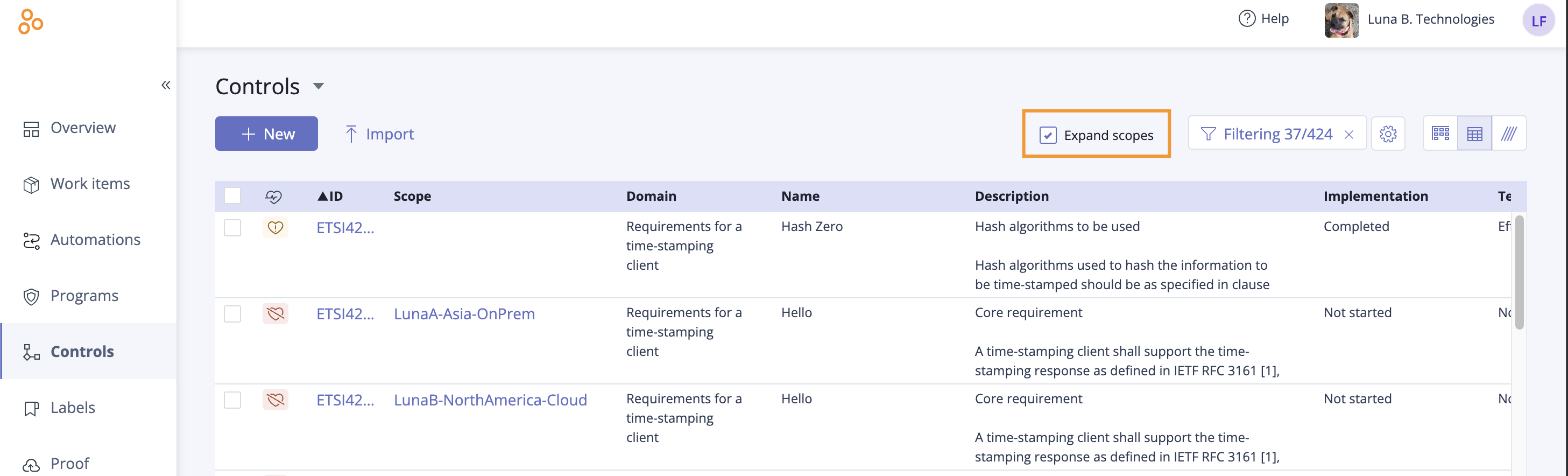
Select the checkboxes next to the child controls you want to mark as fresh.
Note
By design, the main control does not show in the controls list when the Expand scopes checkbox is selected.
Select the ... (More options) tab.
Click Mark fresh.
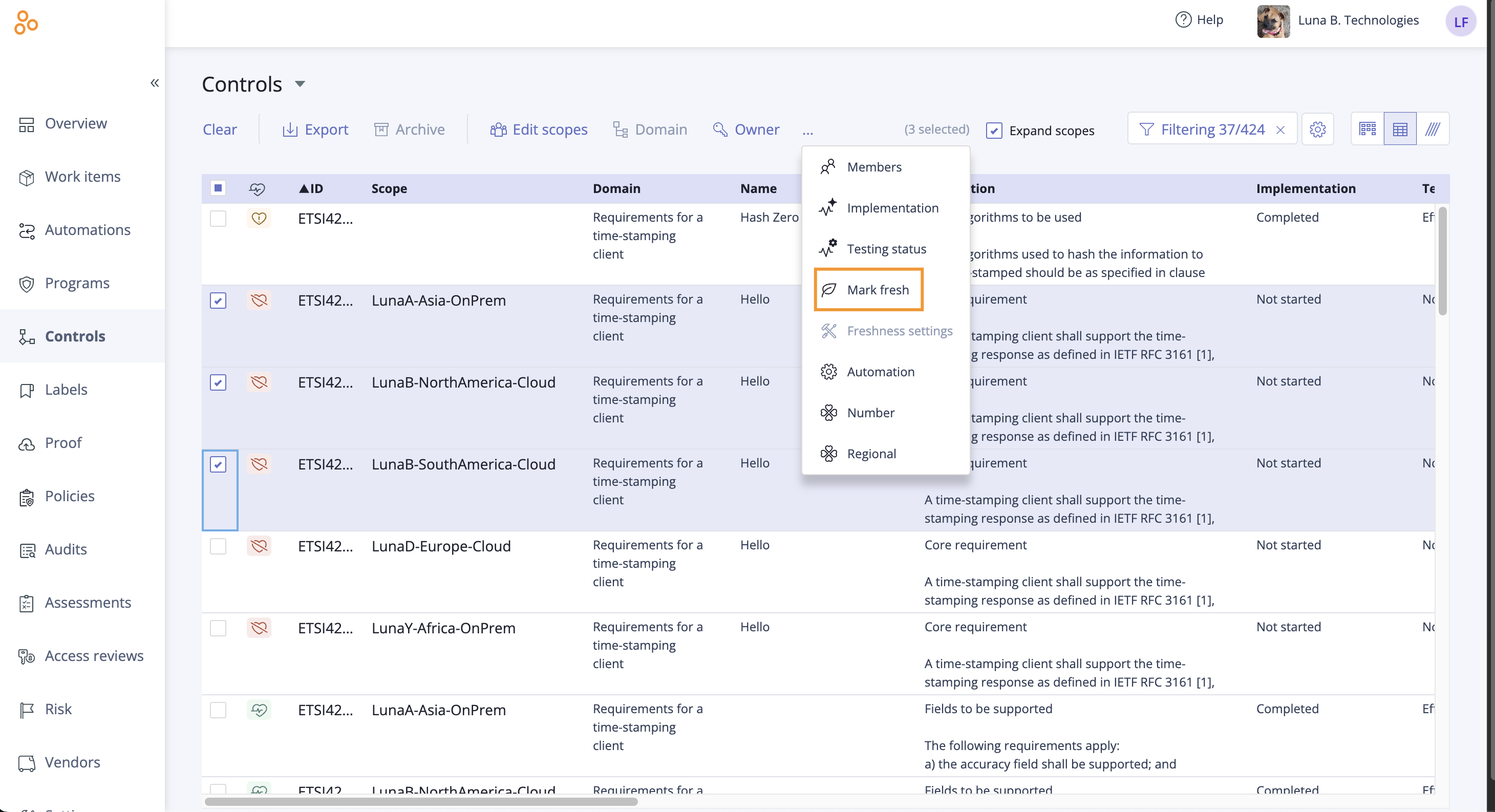
The Mark fresh window opens.
The Freshness field defaults to Fresh.
The Fresh as of field defaults to today's date. You can backdate it if necessary, but you can't choose a future date.
Hyperproof displays the next expiration date on the window.
Click Save.
The selected scope assignment controls are now marked as fresh.