Viewing a risk assessment survey
Roles and permissions
The following roles can view a survey:
Anyone who is a member of the survey
Anyone who is a member of the evaluation
When a respondent submits a survey response, the survey owner receives an email notification.
Tip
A submitted survey can be resent at any time if you need more information from the respondent.
Note
Flagging answers in surveys is not currently supported.
Viewing a risk assessment survey
The steps below explain how to view a survey in Hyperproof.
From the left menu, select Assessments.
Select the Risk surveys tab.
Select the survey you want to view.
In the right pane, click View survey.
The survey is displayed. For information on editing a survey, see Editing a risk assessment survey.
Viewing a completed risk assessment survey
The steps below explain how to view a completed survey.
From the left menu, select Assessments.
Select your assessment.
Select the Evaluations tab.
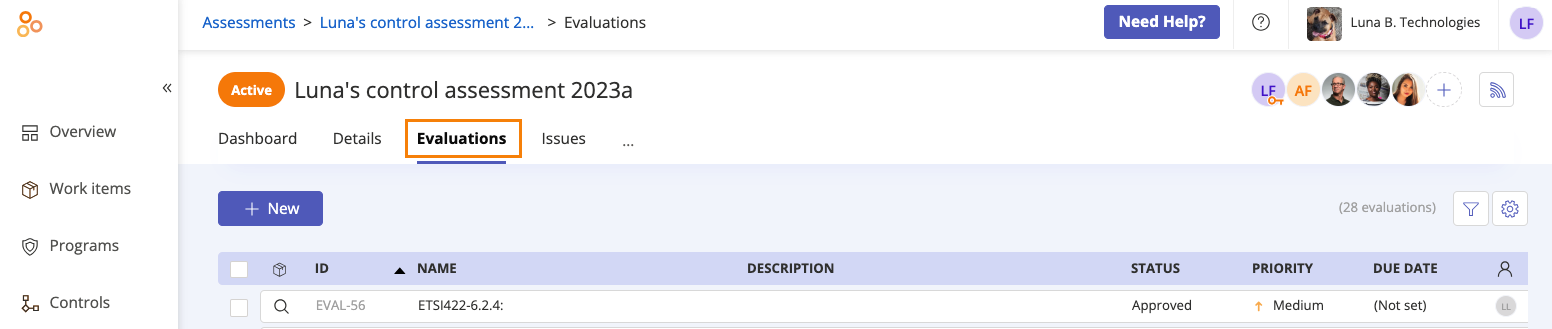
Select the evaluation that corresponds with the survey.
In the right pane, expand the Research section. From here, you can view the survey, view the respondent, and send a reminder to the respondent.
In the Actions column, click View.
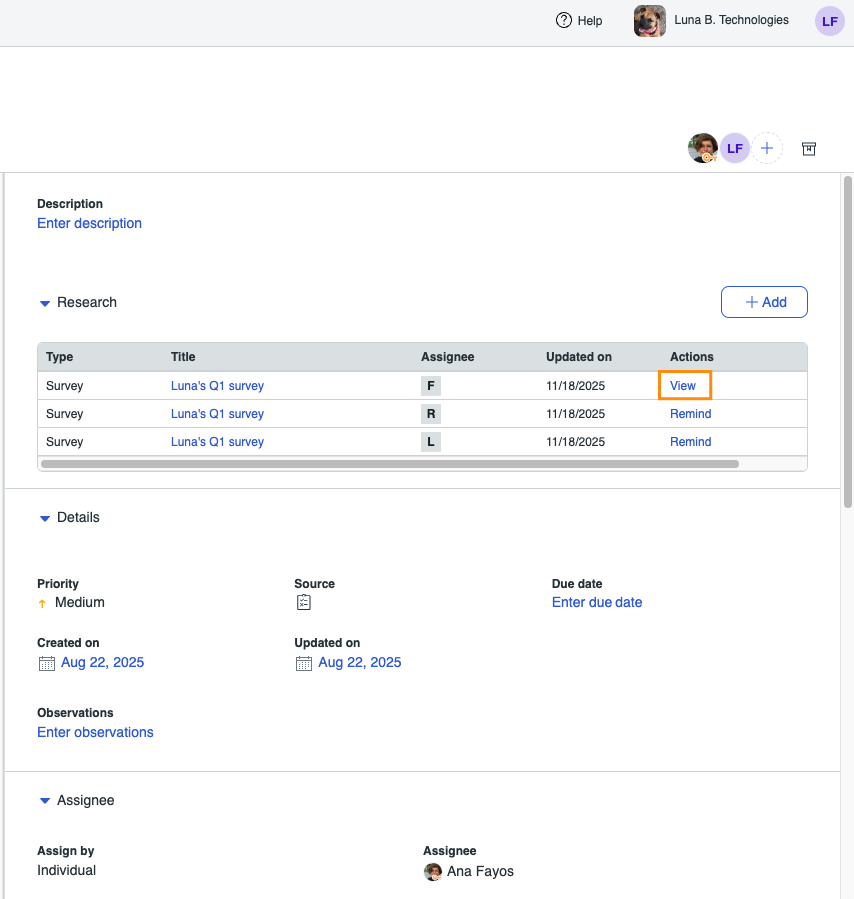
The completed survey is displayed.
Note
The Hyperproof PDF generator doesn't support non-Latin characters. Proof data containing non-Latin characters converted to PDF format when uploaded to Hyperproof will have blank spaces in place of those characters. For example, the Hyperproof PDF generator is used when you upload proof using a Hypersync or submit a questionnaire.
Tip
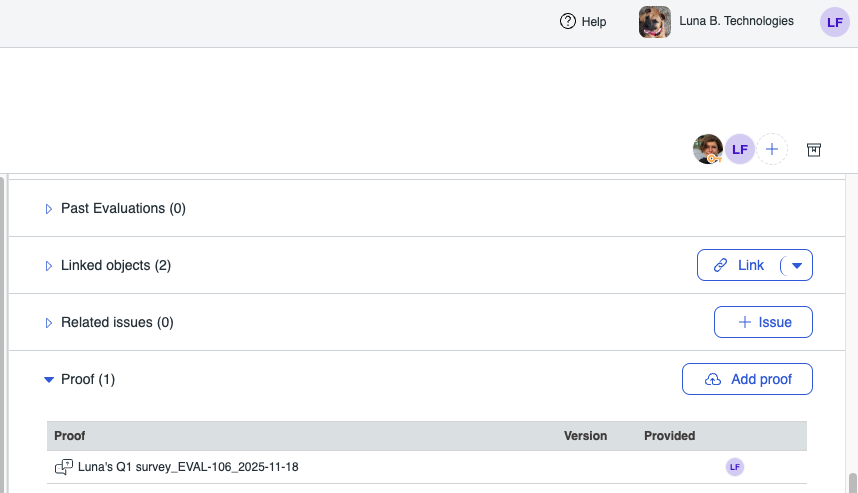
Completed surveys are converted to PDFs and can also be accessed from the evaluation's Proof tab.