Conducting and recording auditor tests on controls
Roles and permissions
The following users can record the results of auditor tests on controls:
Auditors who are members of the audit with auditor permissions.
Compliance audits rely on structured testing to evaluate whether an organization’s controls are designed and operating effectively. Auditors identify key controls, then design and execute test procedures for those controls. In Hyperproof, only controls linked to audit requests are available for auditor testing. To record an auditor test on a control and record the results:
Note
You must be logged in to Hyperproof as an Auditor.
From the left menu, select Audits.
Select the audit where you want to conduct control tests.
Select the Controls tab.
Click the pencil icon in the Actions field for the control you want to test.
The details panel for the selected control displays.
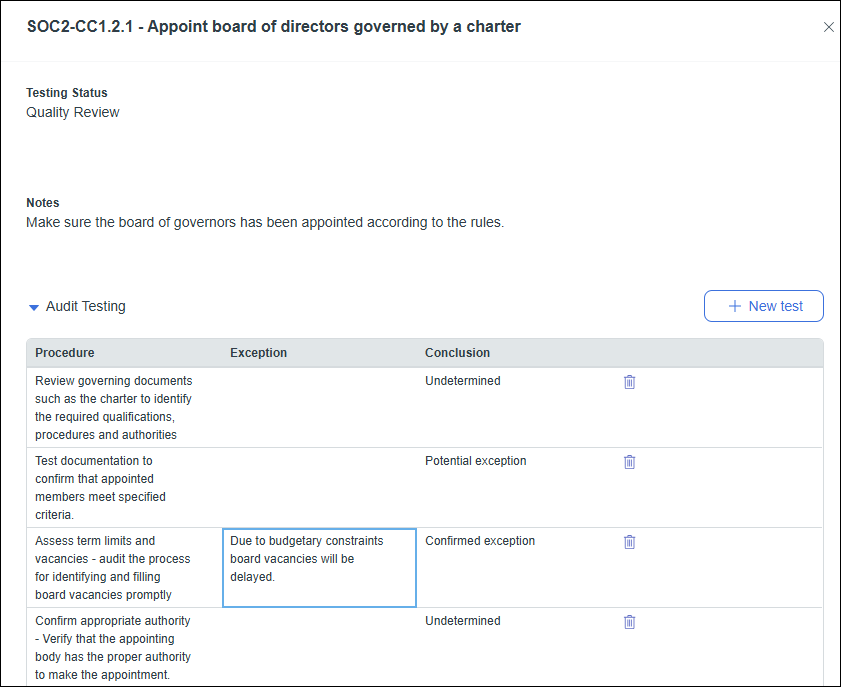
Update the following fields as needed:
Click the Testing status field and select one of the following statuses. Change this field throughout the testing process to reflect the control's current testing state.
Requests received; Testing not started
Requests received; Testing started
Testing preparation complete
Quality Review
Complete
In the Notes field, enter free-form text describing the overall test information for this control.
Click + New test to add a test record to the Audit Testing table and record the information for that test.
In the Procedure field, enter free-form text that describes the process for this test.
In the Exception field, enter free-form text describing any exceptions discovered during testing.
In the Conclusion field, select one of the following options indicating whether or not there were exceptions in the test results.
To remove a test from the table, click the trash can icon next to that test.