Editing a risk assessment survey
Roles and permissions
The following roles can edit a survey:
Anyone who is a member of the survey.
Surveys can be edited in Hyperproof or outside of Hyperproof in CSV format. The steps below explain how to edit a survey directly in Hyperproof.
From the left menu, select Assessments.
Select the Risk Surveys tab.
Select the survey you want to edit.
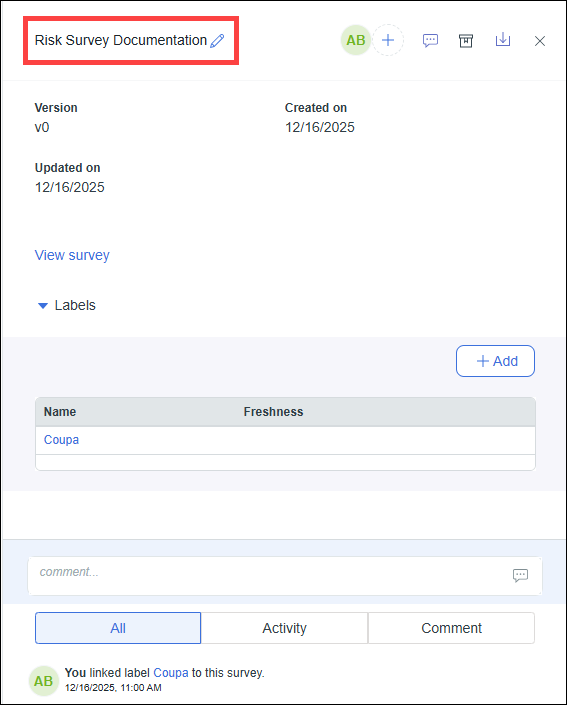
Optionally, to change the name of the survey, hover over the current name, then click the Edit icon.
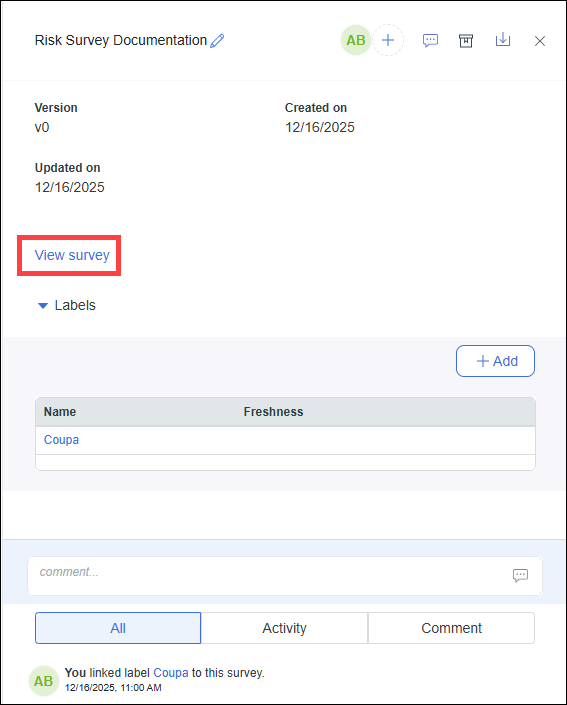
In the right pane, click View survey.
Click Edit.
Do any or all of the following:
Click New to add a new section, question, or text box.
Question types:
Rearrange questions by dragging and dropping them.
Rearrange sections by dragging and dropping them.
Expand a question box to:
Edit the question and/or answer options
Change the question type
Make the question optional or required
Make the question a gating question
Duplicate the question
Delete the question
Click Save.