Sending a questionnaire
Roles and permissions
The following roles can send a questionnaire:
Anyone with manager or contributor permissions for the Vendor Register and the questionnaire
Note
To send a questionnaire, you must be both a member of the Vendor Register and of the questionnaire. See Adding a user to a questionnaire
You can choose to send a questionnaire to a single respondent or to multiple respondents.
From the left menu, select Vendors.
Select the Questionnaires tab.
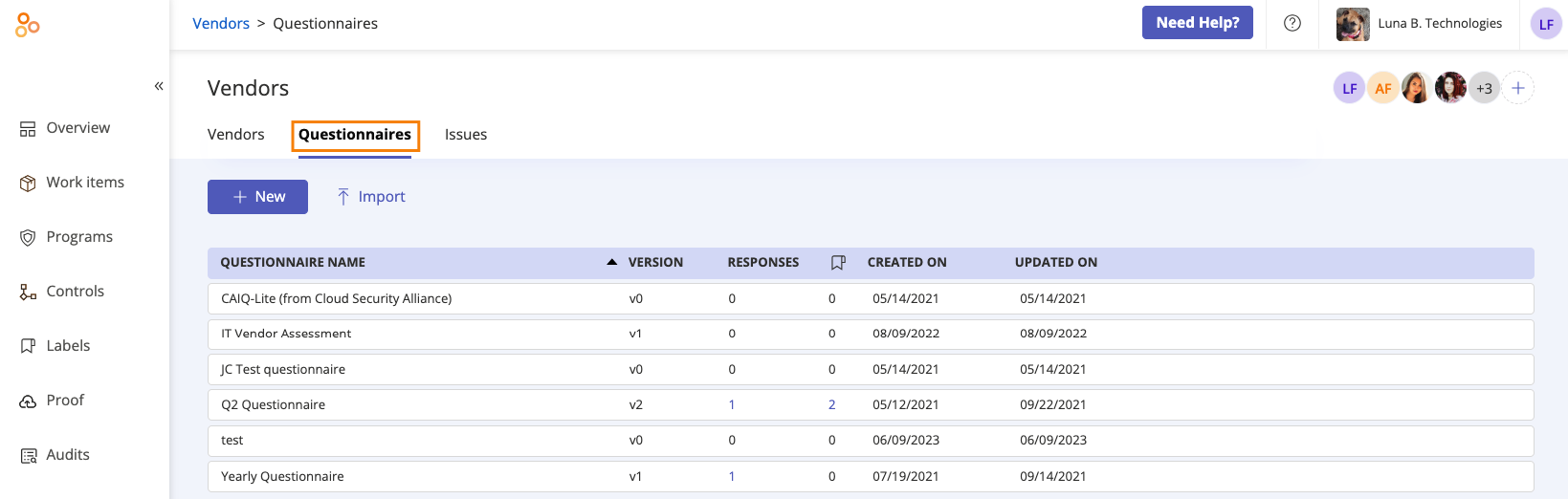
Select the questionnaire you want to send.
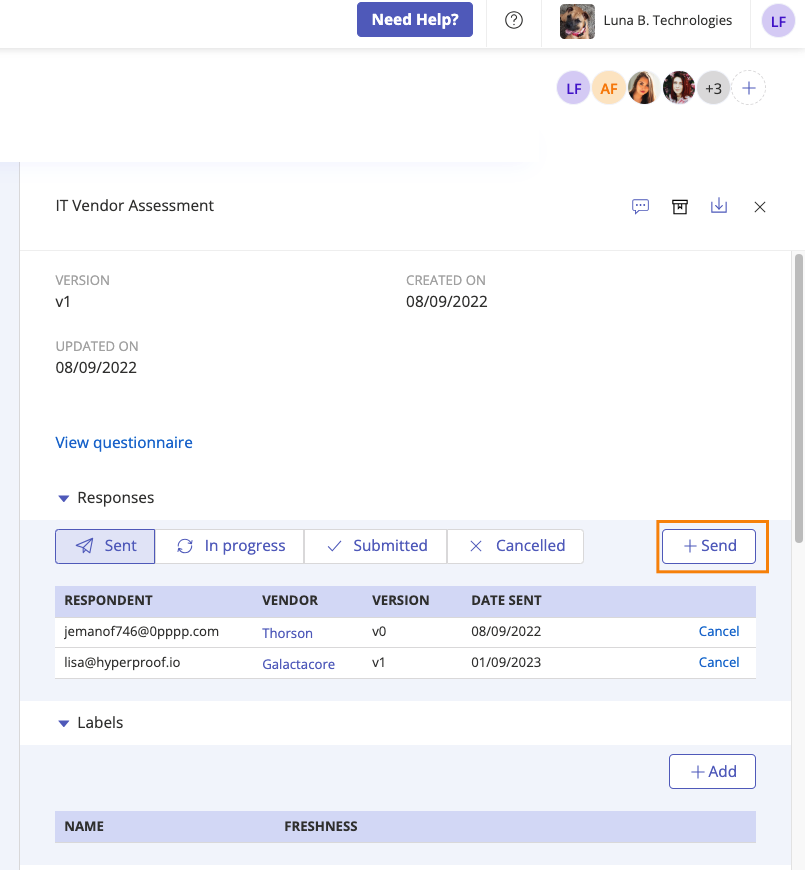
In the right pane, expand the Responses section.
Click Send.
The Send questionnaire window opens.
From the Vendor drop-down menu, select the vendor you want to send the questionnaire to.
From the Respondent drop-down menu, select the respondent to whom the survey should be sent. By default, both the vendor owner and external contact(s) are listed in the menu. To send the survey to all respondents, select the Select all respondents checkbox.
Tip
The users shown in the menu are linked to the vendor associated with the questionnaire. You can update these respondents at any time by clicking Add on Vendor page.
Optionally, enter a brief note for the respondent or respondents.
Optionally, from the Update recipients drop-down menu, select a recipient to receive a notification once the questionnaire is submitted.
Click Send, then click Done.
The questionnaire is sent.
Notes about sent questionnaires
By design, the Attachment icon (paperclip) is present on all questions, even those that are not 'proof upload' questions. Additionally, there are no restrictions on file types that can be uploaded as proof. See Viewing proof for supported file types.
All file uploads are scanned and Hyperproof's Operations team is notified of any infected files. Text input is sanitized for malicious HTML/Script.
Vendor questionnaires require respondents who are not Hyperproof users to use a one-time passcode to access the questionnaire. One-time passcodes expire after 5 minutes. If the email with the passcode ends up in a Spam or Junk Folder, the code may expire before the respondent finds it. If the code has expired, the respondent can get a new code by clicking the Resend Code button in the verification window. See One-time passcodes for external users in Hyperproof Gov or One-time passcodes for external users in Hyperproof US and Hyperproof EU.
Links to vendor questionnaires sent via email can't be shared. Each respondent must be sent a questionnaire and use their own link. If a respondent attempts to use a link sent to another respondent, they won't be able to complete the one-time passcode process and access the questionnaire.
Vendor questionnaires sent to multiple respondents can be opened and edited simultaneously.
If you are collaborating on a shared questionnaire, do not click Submit until all external contacts' answers have been entered. Once someone submits the questionnaire, it can't be updated.
Responses to questionnaires sent to multiple respondents are recorded differently depending on who receives the questionnaire and whether the recipients share the same questionnaire link.
A questionnaire sent to a vendor owner and one external contact
Each recipient receives a separate questionnaire.
Each submits a separate response record.
Responses are not combined.
If the vendor owner is a group, the questionnaire is sent to the group lead or the owner you have designated.
A questionnaire sent to multiple external contacts at the same time
All external contacts share one questionnaire.
Their answers are merged into a single shared response record. For example, one external contact can complete Section 1 while another completes Section 2, and Hyperproof stores their answers together as a single response.
Because the questionnaire is shared, one respondent can overwrite another respondent’s answers if they are editing the same fields.
Refreshing the page displays answers added by other respondents.
A questionnaire sent to a vendor owner and multiple external contacts
The vendor owner receives their own questionnaire.
The external contacts share one questionnaire.
This results in two response records: One from the vendor and one shared response from the external contacts.
If the vendor owner is a group, the questionnaire is sent to the group lead or the owner you have designated.
A questionnaire sent to two external contacts at different times
If you send the questionnaire to one external contact, and later send it again to another external contact as a separate action:
Each external contact receives a separate questionnaire.
Each submits a separate response record.
Responses are not merged.