Assigning a user or group to a risk
Roles and permissions
The following roles can assign a user or group to a risk:
Anyone with manager permissions for the Risk Register
Anyone with manager permissions for the risk where the new user is being assigned
This article explains how to assign a risk to a user or group.
Note
A limited-access user can only access risks assigned to them if they are a member of the Risk Register. If they aren’t a member, they must use the email links to view their assigned risks.
To make things easier, you can add the limited access user as a viewer on the Risk Register. This lets them navigate directly to the risks they need to work on inside Hyperproof. They will still only be able to edit the risks where they have manager or contributor access, but they’ll be able to view all risks listed in the register.
Assigning a user or group to a single risk
From the left menu, select Risk.
Select your Risk Register.
Select the Risks tab.
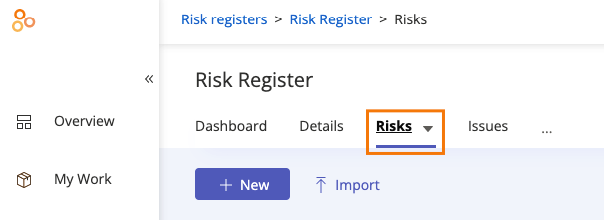
Select the risk you want to assign the user or group to.
From the Details tab, expand the Risk owner section.
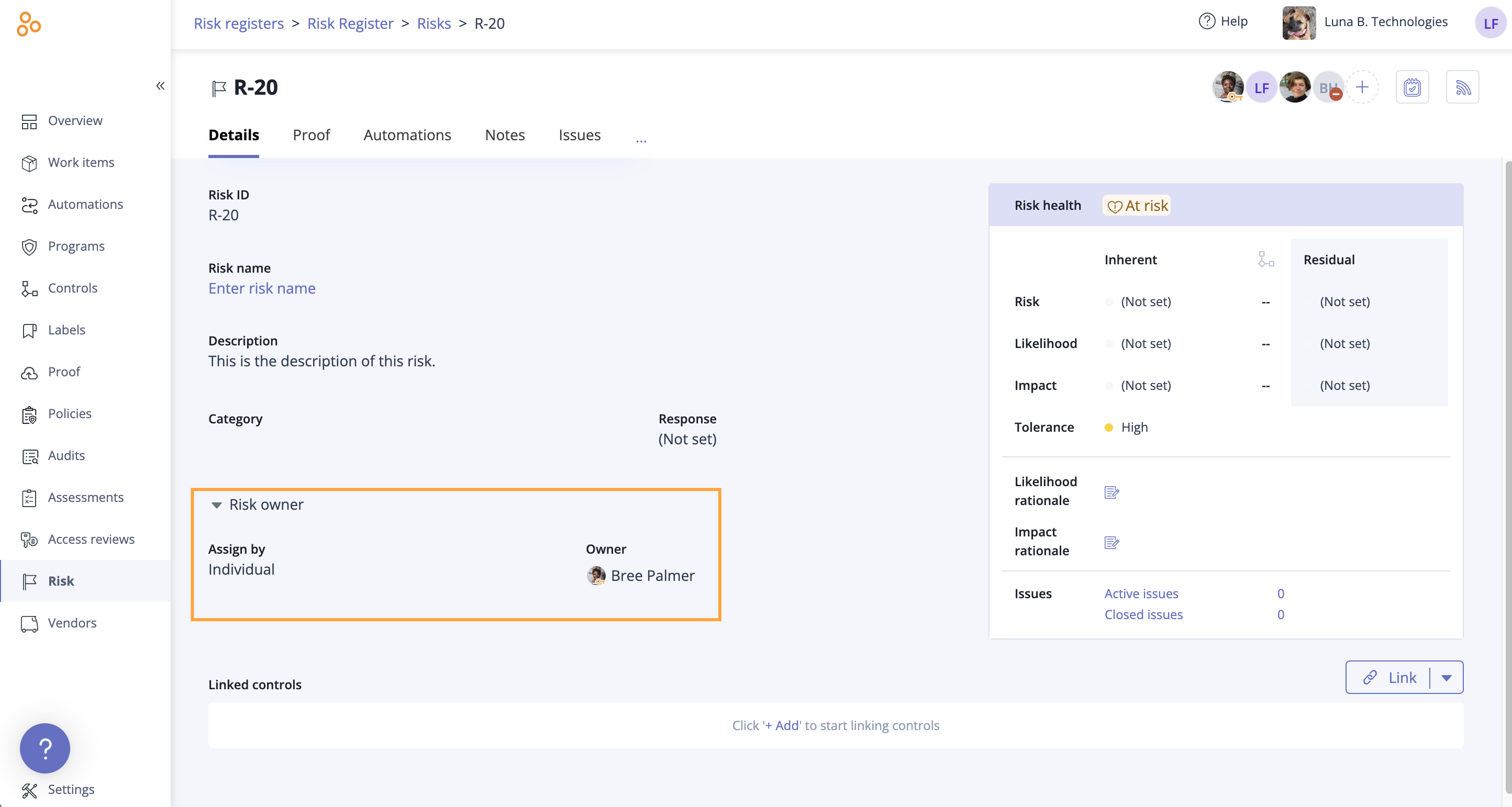
Do one of the following:
To assign the risk to an individual owner, hover over the current owner, then click the Edit icon. Select a new owner from the drop-down menu.
To assign the risk to a group, hover over Individual, then select Group. Click Select group. Select a group from the drop-down menu. If the group has a designated lead, that individual automatically becomes the owner. If the group doesn't have a lead, you can hover over the current owner and select a new owner.
Hyperproof automatically saves your changes.
Assigning a user or group to risks in bulk
The steps below explain how to assign multiple risks to a user or group at once.
From the left menu, select Risk.
Select your Risk Register.
Select the Risks tab.
Click the Grid view icon.

Select the checkboxes next to the risks you want to edit.
Click Owner.
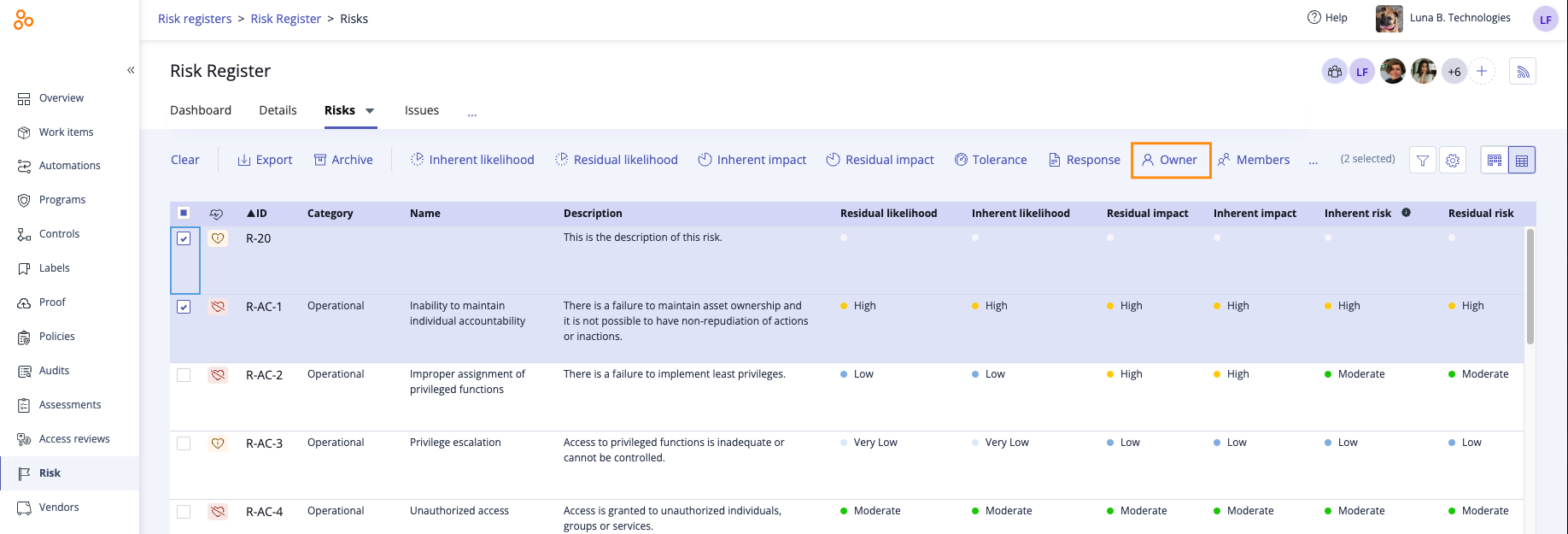
The Edit risk owner window opens.
Do one of the following:
To change the individual owner, hover over the current owner, then click the Edit icon. Select a new owner from the drop-down menu.
To change the owner to a group, hover over Individual, then select Group. Click Select group. Select a group from the drop-down menu. If the group has a designated lead, that individual automatically becomes the assignee. If the group doesn't have a lead, you can hover over the current assignee and select a new assignee.
Click Review.
The Review and confirm window opens.
Click Confirm.
The risks are assigned to the user or group.