Exporting evaluations to a CSV or XLSX file
Roles and permissions
The following roles can export evaluations to a CSV or XLSX file:
Anyone with manager permissions for the assessment.
In Hyperproof, you have the option to export the following from an assessment:
Assessment requests (no linked proof)
Assessment evaluations to a Word document (no linked proof)
Assessment evaluations to a CSV or XLSX file (no linked proof)
This article explains how to export evaluations to a CSV or XLSX file.
Note
To include specific fields in your export file, such as custom fields, you must make sure they are displayed in the Grid view for the items you are exporting. Use the Settings option to select the fields you want to display in the Grid view and choose their display order. To access Settings, click the Gear icon in the top right corner of the grid.
To include specific records in your export file, use the Filter options to reduce the number of records displayed in the Grid view. Only items included in the Grid view are included in the export file.
To export evaluations to a CSV or XLSX file:
From the left menu, select Assessments.
Select your assessment.
Select the Evaluations tab.
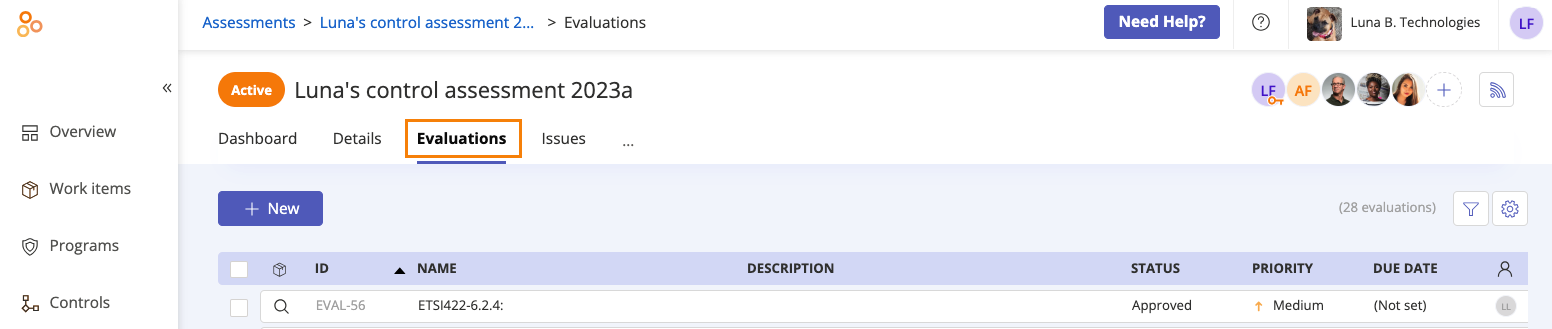
Click the Grid view icon.

Select the checkboxes next to the evaluations you want to export. To select all evaluations, select the All checkbox in the upper-left corner of the grid.
Click Export.
Select one of the following options:
Export evaluations (CSV) - Exports the selected evaluations to a CSV file. Note that the export does not include any linked proof. Includes ID, Control or requirement ID, Summary, Assignee, Group, Description, Priority, Status, Due date, Observations, Reference, Linked controls, Linked labels, Linked programs, Linked audits, Linked risks, Linked vendors, Linked risk registers, Linked vendor registers, and Custom fields.
Export evaluations (XLSX) - Exports the selected evaluations to an Excel file. Note that the export does not include any linked proof. Includes ID, Control or requirement ID, Summary, Assignee, Description, Priority, Status, and Due date.
The evaluations are exported.